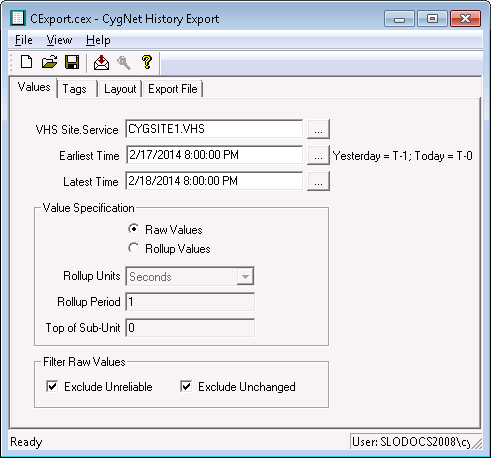
Use the CygNet History Export utility to export data from the VHS to a comma-separated values (CSV) file. Export definitions are saved in a .cex file so that you can schedule the export or run it at a future date.
Data can be exported in its raw form or in a rollup form. The VHS stores data in "raw" form. That is, only the values that were sent to the VHS are stored in the VHS. "Rollup" data is raw data that is condensed by thinning or calculation. An example rollup is thinning the raw values to the minimum and maximum values for every hour. You can specify the rollup type on a per tag basis.
Note: While the VHS legacy datastore type is now obsolete, you can still run any VHS utility against a VHS legacy datastore.
Note: See CygNet Excel Export for another method for exporting data directly to Microsoft Excel.
CygNet History Export can be installed using the CygNet Client Installer. In most installations, it may be found in the CygNet\Utilities directory (CExport.exe) on the host server.
To install and launch (start) the application or utility using version management:
-OR-
Alternatively, browse to the CygNet\Utilities directory using Windows Explorer and double-click the program icon. You can also start an application or utility from a command line. These methods do not provide version management.
The CygNet History Export dialog box appears.
To Define and Run an Export
 ) .
) . ).
).The CygNet History Export utility user interface includes a Menu Bar, a Toolbar, four configuration pages, and a Status Bar.
Menu options are contained in the following menus: File, View, and Help. The CygNet History Export utility toolbar contains the following icons.

|
| CygNet History Export Toolbar |
The File menu contains the following options to help you manage the export definitions created by the utility.
| Menu Option | Description | Shortcut | Toolbar Icon |
|---|---|---|---|
| New |
Create a new export definition. |
Ctrl+N |
|
| Open |
Open a previously saved export definition file. |
Ctrl+O |

|
| Save |
Save an export definition file. |
Ctrl+S |
|
| Save As |
Save current settings to a new export definition file. |
Alt+F+A | |
| Export |
Export VHS data to the CSV file specified in the export definition using the configured settings. |
Ctrl+E |
|
| Export As |
Export VHS data to a different CSV file to the one specified in the utility. |
||
| Export Preview | This option is not implemented. | ||
|
Exit |
Exit the CygNet History Export utility. |
Ctrl+E |
The View menu contains options for showing and hiding UI elements.
| Menu Option | Description | Shortcut |
|---|---|---|
|
Toolbar |
Hide or Show the toolbar. |
|
|
Status Bar |
Hide or Show the status bar. The status bar displays tooltips for buttons in the tool bar. |
The Help menu opens About information.
| Menu Option | Description | Icon |
|---|---|---|
|
About CygNet History Export… |
Displays an About CygNet History Export Application dialog box to view application information. Available information includes the following:
In addition to information about the application, the About box includes the following buttons:
|
|
CygNet History Export has four pages to define the properties of an export:
More:
 Configuring History Export Values
Configuring History Export Tags
Configuring History Export Layout
Configuring History Export File

|
|
|


